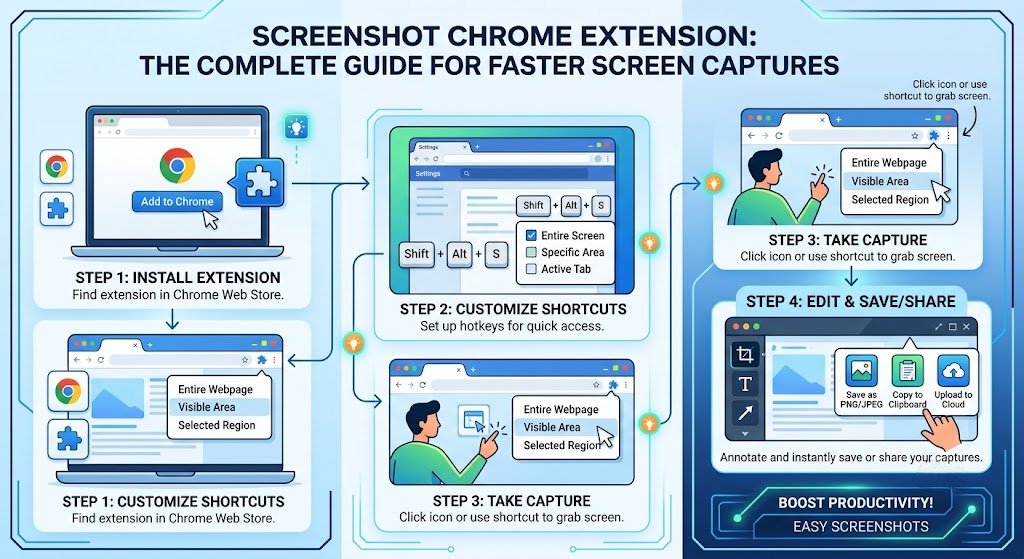
Taking screenshots has become a daily task for students, professionals, marketers, developers, designers, and remote teams. Whether you’re saving important information, creating tutorials, reporting bugs, collecting research, or sharing feedback, a reliable screenshot Chrome extension can dramatically improve your workflow.
While Chrome offers built-in screenshot capabilities through developer tools and operating system shortcuts, they often lack advanced features such as full-page capture, annotation tools, cloud sharing, image editing, and team collaboration.
That’s where screenshot Chrome extensions come in.
These browser add-ons allow users to capture visible screens, entire web pages, selected regions, browser tabs, or even scrolling pages with just a few clicks. Many also include powerful editing tools that let you highlight content, blur sensitive information, add arrows, insert text, and share screenshots instantly.
In this comprehensive guide, you’ll learn everything about screenshot Chrome extensions, including how they work, their benefits, must-have features, top use cases, and how to choose the right one for your needs.
What Is a Screenshot Chrome Extension?
A screenshot Chrome extension is a browser add-on that enables users to capture screenshots directly from Google Chrome without requiring separate software.
These extensions integrate into the browser toolbar and provide quick access to screen-capturing tools.
Most screenshot extensions support:
- Visible screen capture
- Full-page screenshots
- Selected area capture
- Browser tab screenshots
- Scrolling screenshots
- Image annotation
- Cloud storage integration
- Instant sharing links
Unlike traditional screenshot methods, Chrome extensions are designed specifically for web-based workflows.
Why Use a Screenshot Chrome Extension?
Many users rely on keyboard shortcuts like:
- Windows: Win + Shift + S
- Mac: Command + Shift + 4
While useful, these methods have limitations.
A dedicated screenshot extension offers several advantages:
Faster Workflow
Capture screenshots directly from the browser without switching applications.
Full-Page Capture
Save entire webpages, including content below the fold.
Built-In Annotation
Add:
- Text notes
- Highlights
- Shapes
- Arrows
- Callouts
before sharing screenshots.
Better Collaboration
Create shareable links for teammates, clients, or customers.
Professional Documentation
Ideal for creating:
- Tutorials
- SOPs
- Knowledge base articles
- Product guides
- Bug reports
Key Features to Look for in a Screenshot Chrome Extension
Not all screenshot extensions are created equal.
Here are the most important features to consider.
Full-Page Screenshots
This feature captures an entire webpage from top to bottom.
Perfect for:
- Saving articles
- Website audits
- Competitor research
- Design reviews
Benefits
- No manual scrolling
- Single image output
- Better documentation
Selected Area Capture
Allows users to capture only a specific portion of a webpage.
Useful for:
- Highlighting issues
- Sharing snippets
- Creating visual feedback
Annotation Tools
The best screenshot Chrome extension should include editing capabilities.
Popular annotation options include:
- Arrows
- Rectangles
- Circles
- Highlighters
- Text boxes
- Stickers
- Emojis
These tools improve communication and clarity.
Blur and Privacy Protection
When sharing screenshots, sensitive information often needs to be hidden.
Examples include:
- Email addresses
- Passwords
- Payment details
- Customer information
Blur tools help maintain privacy and compliance.
Cloud Storage Integration
Many modern extensions automatically save screenshots to cloud platforms.
Common integrations include:
- Google Drive
- Dropbox
- OneDrive
- Internal cloud storage
This makes accessing and sharing screenshots much easier.
Instant Sharing
Generate a link immediately after capture.
Benefits include:
- Faster collaboration
- Easier customer support
- Reduced file transfers
Types of Screenshots You Can Capture
Understanding the available capture methods helps you choose the right extension.
Visible Screen Capture
Captures exactly what appears on your screen.
Best for:
- Quick screenshots
- Social media content
- Small webpage sections
Full-Page Capture
Captures an entire webpage automatically.
Best for:
- Research
- Website backups
- Documentation
Region Capture
Allows users to select a specific area manually.
Best for:
- Tutorials
- Presentations
- Design reviews
Browser Window Capture
Captures the active browser window only.
Best for:
- Product demonstrations
- Support requests
Desktop Screenshot
Some advanced screenshot extensions can capture:
- Entire desktop
- Multiple monitors
- External applications
This is especially useful for remote teams.
Best Use Cases for Screenshot Chrome Extensions
Content Creation
Bloggers and content marketers use screenshots for:
- Tutorials
- Product reviews
- Case studies
- Guides
Screenshots improve readability and engagement.
Customer Support
Support teams frequently use screenshots to:
- Report bugs
- Explain solutions
- Document issues
Visual communication often resolves problems faster than text alone.
Web Development
Developers rely on screenshots to:
- Track design issues
- Share bugs
- Compare versions
- Document testing
Digital Marketing
Marketers use screenshots for:
- Competitor analysis
- Ad documentation
- Campaign reporting
- Landing page reviews
Online Learning
Students and educators capture screenshots for:
- Notes
- Assignments
- Tutorials
- Research references
How to Install a Screenshot Chrome Extension
Installing a screenshot extension takes only a few minutes.
Step 1: Open the Chrome Web Store
Launch Google Chrome and visit the Chrome Web Store.
Step 2: Search for Screenshot Extensions
Use keywords such as:
- Screenshot Chrome extension
- Screen capture extension
- Full page screenshot
Step 3: Choose an Extension
Review:
- Ratings
- Reviews
- Downloads
- Permissions
before installing.
Step 4: Click “Add to Chrome”
Approve the required permissions.
Step 5: Pin the Extension
Pin the extension to the Chrome toolbar for quick access.
How to Take a Screenshot Using a Chrome Extension
Most screenshot extensions follow a similar workflow.
Step 1
Click the extension icon.
Step 2
Choose a capture method:
- Visible page
- Selected area
- Full page
- Window capture
Step 3
Capture the screenshot.
Step 4
Edit if necessary.
Add:
- Notes
- Highlights
- Arrows
- Blur effects
Step 5
Download or share the image.
Screenshot Chrome Extension vs Built-In Screenshot Tools
| Feature | Chrome Extension | Built-In Tools |
| Full-page capture | Yes | Limited |
| Annotation | Yes | Usually No |
| Cloud storage | Yes | No |
| Instant sharing | Yes | No |
| Team collaboration | Yes | No |
| Workflow automation | Yes | No |
For occasional screenshots, built-in tools work fine.
For professional use, screenshot extensions provide significantly more functionality.
Common Problems and Solution
Full Page Screenshot Not Working
Possible causes:
- Dynamic websites
- Extension conflicts
- Browser updates
Solution
- Update Chrome
- Disable conflicting extensions
- Restart the browser
Blurry Screenshots
Causes include:
- Browser zoom settings
- Display scaling
- Compression settings
Solution
Capture screenshots at 100% zoom whenever possible.
Extension Crashes
This often occurs due to:
- Low system memory
- Outdated browser versions
- Extension bugs
Solution
- Update Chrome
- Reinstall the extension
- Clear browser cache
Security Considerations When Using Screenshot Extensions
Before installing any screenshot Chrome extension, evaluate its security practices.
Review Permissions
Be cautious if an extension requests:
- Access to all browsing activity
- Sensitive account information
- Unnecessary permissions
Read User Reviews
Check:
- Recent ratings
- Security complaints
- Performance feedback
Install Trusted Extensions
Choose extensions with:
- Large user bases
- Frequent updates
- Positive reviews
- Transparent privacy policies
Advanced Productivity Tips
Want to get even more value from your screenshot extension?
Create Visual Documentation
Build internal guides using screenshots and annotations.
Use Keyboard Shortcuts
Most extensions support custom shortcuts for faster captures.
Organize Screenshots
Store screenshots in:
- Project folders
- Cloud drives
- Team workspaces
for easy retrieval.
Combine Screenshots With Notes
Add explanations immediately after capture to avoid losing context later.
How Screenshot Extensions Improve Remote Work
Remote teams rely heavily on visual communication.
Instead of lengthy explanations, screenshots can instantly clarify:
- Design feedback
- Technical issues
- Project updates
- Training instructions
Benefits include:
- Reduced meetings
- Faster issue resolution
- Better collaboration
- Improved productivity
This is one reason screenshot Chrome extensions have become essential tools for distributed teams.
Conclusion
A screenshot Chrome extension is one of the most useful productivity tools available for modern web users. Whether you’re a student saving research, a marketer documenting campaigns, a developer reporting bugs, or a remote worker collaborating with teammates, the right extension can save significant time and effort.
The best screenshot extensions go far beyond basic screen capture. They offer full-page screenshots, annotation tools, privacy protection, cloud storage integration, and instant sharing capabilities that streamline communication and improve workflow efficiency.
When choosing a screenshot Chrome extension, focus on the features that matter most to your daily tasks. Prioritize security, ease of use, editing functionality, and performance. With the right tool installed, capturing and sharing information becomes faster, clearer, and more productive than ever before.
Frequently Asked Questions (FAQ)
What is the best screenshot Chrome extension?
The best screenshot Chrome extension depends on your needs. Look for features such as full-page capture, annotation tools, cloud storage, and easy sharing options.
Can Chrome take full-page screenshots?
Yes. Many screenshot Chrome extensions can capture entire webpages, including content that requires scrolling.
Are screenshot Chrome extensions free?
Many extensions offer free versions with essential screenshot functionality. Premium plans may unlock advanced editing, storage, and collaboration features.
Do screenshot extensions work offline?
Basic screenshot functionality usually works offline. However, cloud storage and sharing features may require an internet connection.
Are screenshot Chrome extensions safe?
Most reputable extensions are safe when downloaded from trusted sources. Always review permissions, privacy policies, and user feedback before installation.
Can I edit screenshots after capturing them?
Yes. Most modern screenshot extensions include editing tools such as text annotations, arrows, highlights, shapes, and blur effects.
Do screenshot extensions slow down Chrome?
Well-optimized extensions have minimal impact on browser performance. Installing too many extensions simultaneously may reduce speed.
Can I share screenshots instantly?
Yes. Many screenshot Chrome extensions generate shareable links immediately after capture, making collaboration faster and easier.